
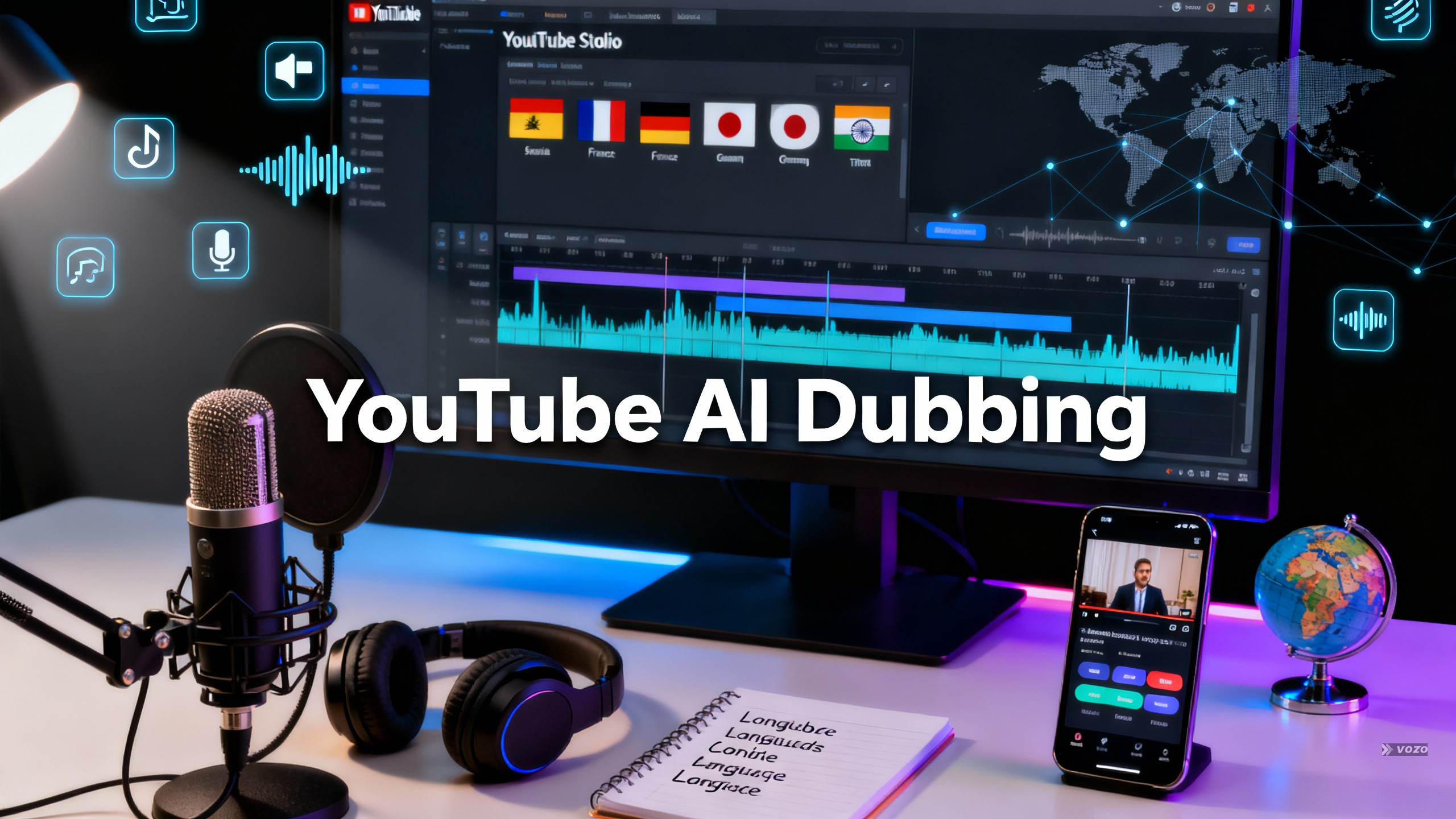
YouTube AI Dubbing: How to Use It
YouTube is quietly changing what “going global” looks like for creators. On December 10, 2024, YouTube announced AI-powered auto dubbing to help break down language barriers and improve accessibility. It expanded availability to hundreds of thousands of channels in the YouTube Partner Program, starting with creators focused on knowledge and information content. The big advantage is that you do not upload separate localized videos. Instead, YouTube generates additional dubbed audio tracks on the same video, and viewers pick them from the Audio tracks selector.
This is why YouTube AI dubbing matters right now: it can unlock new audiences without adding a full production workflow. But YouTube also openly warns the system is still new and not always perfect, including the risk of translation mistakes and voices that do not accurately represent the original speaker. I’ll show you how it works, how to control it in YouTube Studio, and how to use it safely if your brand voice matters.
What “YouTube AI Dubbing” Means on YouTube
On YouTube, auto dubbing means YouTube automatically generates translated audio tracks for a video after you upload it. It is a platform feature, not a separate editing app, and it is designed to reduce the need for subtitles so viewers can watch more comfortably in their native language.
Auto dubbing sits alongside YouTube’s broader multilingual accessibility toolkit, such as subtitles/captions and multi-language metadata features where available. YouTube positions it as both:
- A creator growth feature – reach viewers outside your main language
- An audience experience feature – less friction for native-language viewing
Key platform-specific facts YouTube has stated:
- Purpose – break down language barriers and improve accessibility
- Output – dubbed audio tracks in additional languages
- Maturity – still pretty new and will not always be perfect
Pros and Cons (Quick Summary)
Pros
- Helps audiences consume videos without relying on subtitles
- Can expand global reach without separate uploads
- Viewers can switch tracks and return to the original audio anytime
- Clear labeling via the “auto-dubbed” tag improves transparency
Cons
- Translation can be incorrect
- Dubbed voice may not represent the original speaker accurately
- Some viewers dislike unexpected default audio behavior and want a universal disable option
Rollout Timeline, Announcements, and Access
YouTube’s auto dubbing rollout has been gradual. Key milestones include:
- June 2023 – early testing with hundreds of creators referenced in press coverage
- September 18, 2024 – featured at YouTube’s Made on YouTube event
- December 10, 2024 – broader availability to hundreds of thousands of YPP channels, initially prioritizing knowledge and information content
Access is tied to YouTube Studio. If your channel is eligible, you will see auto dubbing controls in Studio settings, and you can choose to review dubs before publishing. YouTube plans to expand access across more creators in the YouTube Partner Program, which includes millions of monetized creators.
Supported Languages and Directionality Rules
YouTube launched auto dubbing with an initial language set and a one-direction rule for that set. If your original video is English, YouTube can generate dubs in these languages:
- French
- German
- Hindi
- Indonesian
- Italian
- Japanese
- Portuguese
- Spanish
If your original video is in any of those non-English languages, YouTube generates a dub into English. This is a one-direction rule for the initial set.
How viewers recognize and control dubbed audio:
- Dubbed tracks are labeled “auto-dubbed”
- Viewers can switch between the original language and dubbed tracks using the Audio tracks menu
- YouTube can remember the viewer’s chosen audio language for future videos that offer multiple tracks
End-to-End Workflow for Creators
This section is the practical heart of YouTube AI dubbing. The process is simple, but quality-control decisions are where creators win or lose trust. I’ll show you the typical flow from upload to published dubs and what to check at each stage.
Step-by-step
Upload – No special steps required
Upload your video normally. No special packaging is required to initiate YouTube auto dubbing. YouTube automatically detects the source language and decides what dubbing behavior applies. If your source language fits the supported rules, YouTube will produce dubbed audio tracks automatically. For example, English source videos can produce Spanish, Portuguese, French, German, Hindi, Indonesian, Italian, and Japanese tracks as additional audio options.
Review in YouTube Studio – Languages section
After upload, go to YouTube Studio and find the “Languages” section. This is where dubbed tracks are managed. Listen to each dub and evaluate accuracy, tone, and whether the voice represents you appropriately. If you are not happy, you can unpublish or delete any dubs you do not like. This review step is essential because YouTube cautions the feature is new and imperfect, and creator oversight is part of the design. Some creators note the “Languages” section replaced the previous “Subtitles” section.
Confirm feature availability – Advanced settings
If you are not sure you have the feature, confirm in YouTube Studio under Advanced Settings. YouTube frames Studio as the control center for auto dubbing settings, including the option to review dubs before publishing. That is an important safeguard for brand-sensitive channels.
Creator Controls – Publishing, Unpublishing, Deleting, and Opt-Out
YouTube includes several controls so creators can manage risk and quality:
- Review before publishing – choose to manually review dubbed tracks before they go live
- Unpublish a dub – removes viewer access without necessarily deleting the generated track
- Delete a dub – removes the generated audio track
- Opt-out or disable – an upload-default setting labeled “Allow automatic dubbing” can be toggled off
A commonly cited creator path to disable auto dubbing uses the Studio upload defaults. Follow these steps to turn the feature off by default:
Disable auto dubbing
Open YouTube Studio
Sign in to YouTube and open Studio.
Go to Settings and Upload defaults
Navigate to Settings, then Upload defaults.
Advanced settings and toggle
Click Advanced settings and uncheck “Allow automatic dubbing”, then click Save. Some sources report auto dubbing may be enabled by default for eligible creators, but you can disable it later.
Viewer Experience – How to Find, Switch, and Understand Dubbed Audio
For viewers, YouTube dubbing AI is all about the Audio tracks menu. If you want to guide viewers on switching tracks, follow these steps:
Switch audio tracks
Open the video and Settings
Open the YouTube video and click the Settings gear icon.
Select Audio tracks
Choose the Audio tracks option in the settings menu.
Pick your preferred language
Select your preferred dubbed track or return to the original audio track.
YouTube can remember your choice
YouTube may remember the viewer’s selected language for future videos that include multiple tracks, but some viewers still report there is no single global toggle to turn off auto dubbing across the platform.
Labeling, Transparency, and Disclosure
YouTube pairs auto dubbing with transparency features so viewers can understand what they are hearing. Typical labels and disclosures include:
- Audio tracks may display an “auto-dubbed” label in the UI
- Videos may include disclosure text in the description under “How this content was made”
A commonly referenced disclosure string is: “Audio tracks for some languages were automatically generated.” Labeling matters because YouTube has acknowledged the system can make mistakes or misrepresent the original speaker, so transparency helps viewers interpret the audio.
Quality, Accuracy, and Known Limitations
YouTube explicitly warns auto dubbing is still pretty new and will not always be perfect. Two major failure categories are commonly called out:
- Translation errors – phrasing can be incorrect or misleading
- Voice mismatch – the dubbed voice may not represent the original speaker accurately
Creators and viewers have also reported issues such as robotic or emotionless delivery, perceived gender or age mismatches, and distortion when background audio is reused improperly. Music-heavy or ambient-heavy videos can be especially vulnerable to artifacts after processing.
YouTube says it is working to make dubs more accurate, expressive, and natural, including improvements that better emulate tone, emotion, and ambiance.
Best-Fit Content Types and When to Use Auto Dubbing
YouTube initially scaled auto dubbing for knowledge and information videos, which strongly suggests educational and explanatory formats are a good fit. Auto dubbing tends to be most useful when:
- You want international reach without producing separate localized videos
- You upload frequently and want a low-friction localization layer
- You want to test language demand before investing in deeper localization
Use extra caution for high-nuance topics where tone and cultural context drive trust, such as history, politics, or culturally sensitive commentary. Those topics can carry higher risk if translations come across as off-tone.
Growth and Monetization Logic
Dubbing can change viewing behavior in ways that support growth:
- Reduces dependence on subtitles so viewers can focus on visuals and improve immersion
- Higher watch time and engagement can support distribution and recommendations
- Reaching non-English audiences can translate into new subscribers and global revenue
Examples cited in sources illustrate the international opportunity. For example, Brazil and India have very large YouTube user bases, and research shows many viewers prefer watching content in their native language. These data points explain why dubbing is being treated as a serious growth lever, though individual results vary.
Operational Best Practices for Creators
If you want the upside of YouTube AI dubbing without hurting trust, treat each dub like a publishable asset that needs QA. Best practices include:
- Always preview dubs before publishing when the option exists, especially for brand-sensitive content
- Spot-check high-risk segments: names, numbers, brand terms, product names, legal or safety statements, and idioms that translate poorly
- Monitor audience feedback and be ready to unpublish or delete dubs quickly if problems surface
- Choose language rollout intentionally – start with 1 to 3 languages aligned with your analytics
- Use consistent terminology across videos so repeated translations are more stable over time
Troubleshooting and Common User Complaints
Common viewer complaints include annoyance when the default audio track is not the viewer’s preferred one. Many community discussions request a universal disable option. Creator-side fixes include unpublishing or deleting a problematic track, disabling the feature in upload defaults, and testing background-heavy videos more carefully before publishing dubs.
YouTube’s Roadmap – Expressive Speech and More Natural Dubs
YouTube has stated it is collaborating with teams like Google DeepMind and Google Translate to improve translations and speech quality. Stated goals include more accurate translations, more expressive and natural speech, better emulation of tone and emotion, and improved preservation of ambiance. YouTube previewed an “Expressive Speech” capability designed to better emulate creator tone, emotion, and ambiance, and it has asked users for patience and feedback as it iterates.
Strategic Language Targeting
The best language plan is not “translate everything.” Prioritize based on audience size and preference for native-language consumption. Examples to consider:
- Portuguese – Brazil’s large user base
- Hindi – India’s large user base
- Spanish – strong global demand and significant US Spanish-speaking audience
A simple phased rollout might look like this:
- Phase 1 – Dub into your top 1 to 2 non-native languages based on impressions and geographies
- Phase 2 – Add additional languages after measuring watch time and retention changes
- Phase 3 – Refine based on engagement and sentiment, and remove tracks that generate complaints
Measurement Plan – How to Evaluate Whether Auto Dubbing Is Working
Treat YouTube AI dubbing like an experiment you can measure and improve. Track these metrics:
- Watch time overall and by geography
- Audience retention curves – do dubbed tracks reduce early drop-off?
- Subscriber growth by country and language
- Comment sentiment – complaints versus appreciation
How to compare fairly: compare before and after periods within the same content category, since YouTube initially prioritized knowledge and information channels. Use publish controls to create A/B style tests: publish dubs for some uploads and withhold for others, then measure the difference in retention, engagement, and complaints.
Open YouTube Studio, check Advanced Settings for availability, and if you have it, start with one or two high-opportunity languages. Preview every dub, publish only what meets your quality bar, and measure results by geography so your YouTube AI dubbing strategy stays grounded in real audience behavior.
I’ll show you the controls and the testing mindset that help you scale multilingual reach without sacrificing trust. Start small, QA everything, and let the data decide your next language moves.