
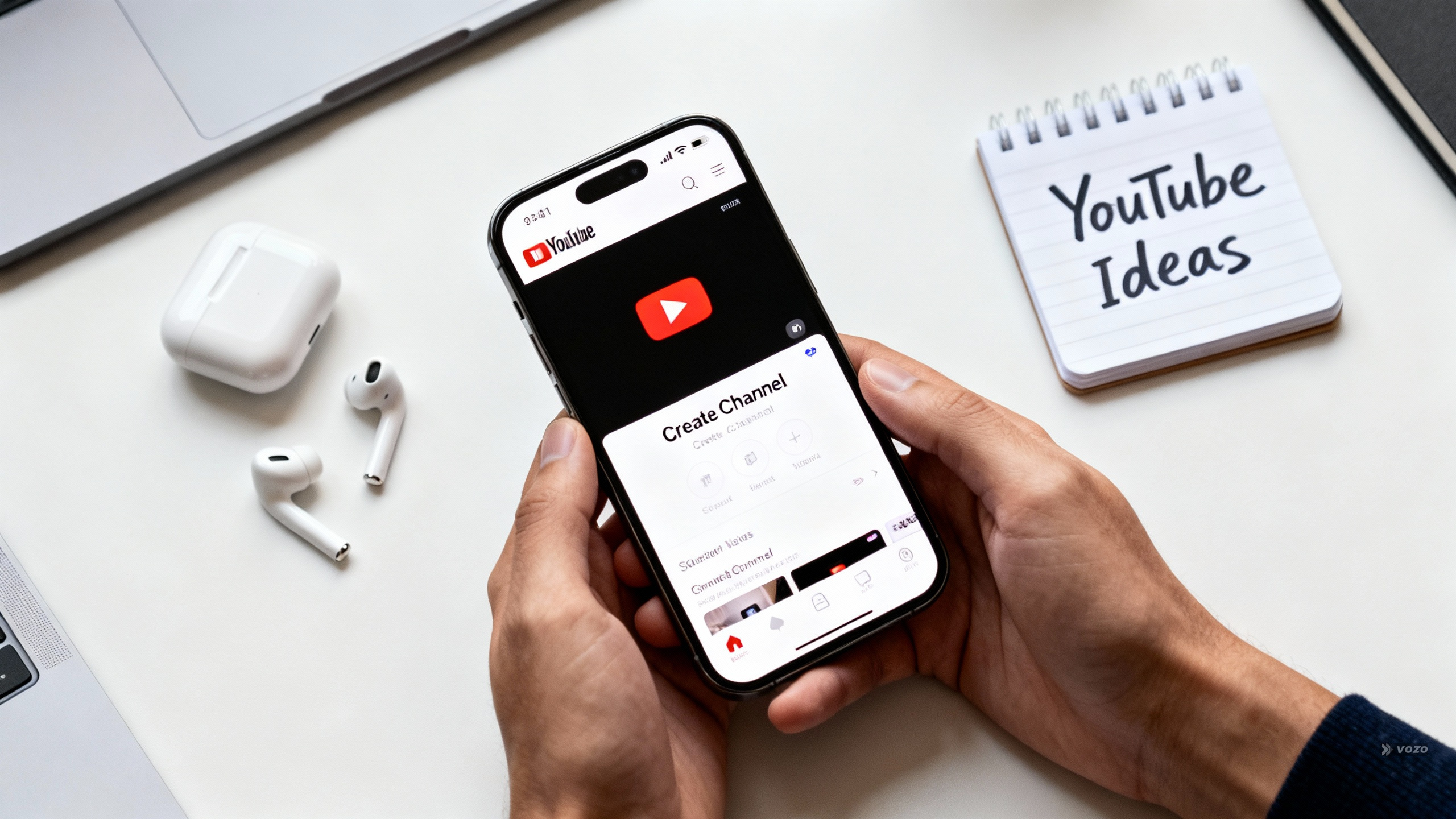
Make a YouTube Channel on iPhone
Creating a YouTube channel from your iPhone is entirely possible, and you do not need an expensive setup to get started. I’ll show you a practical, phone-first workflow that mirrors how mobile creators actually work: research, niche, branding, channel setup, content creation, editing, publishing via YouTube Studio, and early engagement. Along the way you will see how tools like the Detail iOS app fit into the process for recording, editing, and generating publishing assets such as titles, descriptions, and captions.

What it Means to Make a YouTube Channel on iPhone
Making a YouTube channel on an iPhone means signing in to YouTube with your Google account, creating and customizing your creator page, and preparing the channel so you can upload videos and publish consistently. On mobile you access this through Profile → Your Channel → Customize Channel. The emphasis here is on a repeatable, simple workflow you can run entirely from an iPhone.
Overview: What You Need to Start Using Only an iPhone
Here is the minimal, iPhone-first setup you need to begin publishing. The goal is speed and repeatability so you can test formats and iterate quickly.
- Primary device: iPhone
- Account requirement: Google account
- Channel access path: youtube.com → sign in
- Channel entry point in the YouTube UI: profile picture (upper-right) → Your Channel
- Customization area: Customize Channel
- Upload tool: YouTube Studio app
- Capture and edit option: Detail iOS app
- Design option for branding: Canva iOS app
- Outsourcing option: Fiverr app for freelancers
Toolbox
- Google Trends
- YouTube Analytics
- Canva
- Fiverr
- Estúdio do YouTube
- Detail iOS app
Prós
- Low cost entry point: you can start without an expensive setup.
- Fast mobile content creation workflow: record, edit, export, and upload from the same device.
- Detail can automatically generate titles, descriptions, and captions, which saves post-production time.
Contras
- Tools can feel complex at first, especially for new creators.
- You need to follow YouTube image guidelines for dimensions and file size, which can be a sticking point if you have not made channel art before.
- Upload friction can happen if you forget to download or export your finished video to your phone before uploading in YouTube Studio.
Step-by-step: Create a Channel and Start Publishing
Step-by-step
Research and Plan Your Channel Strategy
The first step is research and planning. A clear plan saves time and money because it prevents random uploads, unnecessary gear purchases, and branding rework later. Use Google Trends to check demand, scan creators in your niche to see what works, and outline a content plan you can repeat.
What to do in this step:
- Explore different niches.
- Use Google Trends for trend analysis.
- Use YouTube Analytics for performance insights after you publish.
- Identify your target audience.
- Study successful creators as inspiration.
- Turn findings into a plan for consistent content.
Actionable takeaway: write a one-page channel strategy note in your Notes app with three bullets: your niche, your target audience, and 3 to 5 repeatable video ideas.
Define Your Niche
Choosing the right niche is crucial. Your niche is the promise you make to viewers about what they will get when they subscribe. Use your interests, your expertise, and the audience you want to reach to make a choice that is sustainable.
Examples: beauty and fashion, gaming, cooking, technology. Two rules to stay consistent: pick something you can produce weekly, and align it with your passion to stay motivated. If you are torn, pick the niche you can reliably film on an iPhone without burning out.
Create Channel Branding
Branding makes your channel feel legitimate and helps you stand out on mobile where people scroll fast. Focus on three assets first: logo, banner, and thumbnails.
Two mobile-friendly branding paths:
- Canva – templates and an iOS app that make it easy to create graphics.
- Fiverr – hire a freelancer to design branding elements if you prefer outsourcing.
Practical tip: keep a small brand kit album in Photos with your logo, banner exports, and reusable thumbnail backgrounds to speed up publishing.
Create Your YouTube Channel on iPhone
You need a Google account to create a channel. The immediate goal is to enable a channel page that is ready for branding and uploads. This should not require an expensive setup.
Channel creation steps
Sign in to YouTube
Go to youtube.com and sign in with your Google account details.
Open Your Channel
Tap your profile picture in the upper-right corner and select “Your Channel”.
Customize Channel
Tap “Customize Channel” to start adding your layout and branding.
Add Essentials
Add a profile picture, banner image, and watermark. Use YouTube prompts to confirm image requirements because exact pixel sizes are not quoted here.
Recommended page elements: create a channel trailer and select a featured video so visitors immediately see your best work. Use consistent visuals across profile, banner, and watermark for a cohesive mobile look.
Plan Your Video Formats
After setup, plan the formats you will test. Start with 2 to 3 formats and iterate.
Format examples: tutorials, reaction videos, vlogs, Q&A sessions, interviews. A simple first-three videos plan:
- Video 1: Short tutorial that teaches one specific thing.
- Video 2: Q&A answering common beginner questions in your niche.
- Video 3: Vlog-style behind the scenes or an interview.
Check comments and analytics to decide what to double down on.
Record and Edit on iPhone Using Detail iOS App
Detail aims to be a production crew in your pocket. It helps you capture high-quality footage, speeds up post-production, and can auto-generate titles, descriptions, and captions.
Key features and how creators use them:
- Text-based editing: add captions and annotations quickly for viewers who watch with sound off.
- Green screen: create dynamic backgrounds and make reaction videos more engaging.
- Multiplayer mode: capture multiple angles by syncing several iPhones for interviews or multi-camera shoots.
- Built-in teleprompter: deliver scripts smoothly for tutorials and Q&A videos.
- AI Share Kit: generate short highlight clips for social promotion.
Publish to YouTube From iPhone
Publishing is straightforward if you follow the right order. Pre-upload, make sure the finished video file is saved locally on your phone. Use YouTube Studio to upload the file and add metadata and thumbnail.
Why Detail helps: it auto-generates titles, descriptions, and captions so you can move from edit to upload with less friction. Actionable tip: confirm the file is in Photos or Files before opening YouTube Studio to avoid upload errors.
Engage Viewers After Posting
Once your video is live, begin the engagement loop right away. Respond to comments, encourage likes and shares, and promote the video on social platforms. Early engagement helps you learn what resonates and builds community.
Simple routine on iPhone: check comments shortly after posting, reply to early questions, and share a short highlight clip to socials to drive traffic back to the full video.
Troubleshooting and Common Sticking Points
New creators often feel overwhelmed by tools and steps. The simplest fix is to reduce your workflow to a linear sequence you can repeat: plan, brand, set up, create, publish. Below are common problems and practical fixes.
- Complexity overload – Fix: follow a linear workflow and limit the number of tools you use at first.
- Brand assets not fitting – Fix: rely on YouTube’s Customize Channel prompts to confirm image requirements and use Canva templates sized for mobile.
- Upload friction – Fix: always download or export your final video to your phone before opening YouTube Studio.
- Too many apps – Fix: use a single iOS tool that covers capture, edit, and export when possible.
- Metadata takes too long – Fix: use auto-generated titles, descriptions, and captions to reduce time.
- Posting without follow-through – Fix: schedule a short post-publish routine to reply to comments and promote the video.
End-to-End iPhone Workflow Checklist
Use this printable checklist as your repeatable, iPhone-first YouTube system. I recommend saving this checklist to Notes or printing it for quick reference.
- Research
- Identify niche, trends, and target audience.
- Tools
- Have a Google account, access youtube.com, install YouTube Studio.
- Channel setup path
- Profile → Your Channel → Customize Channel.
- Branding and layout
- Add profile picture, banner, watermark.
- Create a channel trailer and choose a featured video.
- Content formats to test
- Tutorials, reaction videos, vlogs, Q&A, interviews.
- Production
- Record and edit on iPhone.
- Use text-based editing, green screen, multiplayer mode, teleprompter.
- Repurpose
- Create highlight clips for social sharing using AI Share Kit.
- Publish and engage
- Upload in YouTube Studio.
- Respond to comments and promote on social platforms.
Statistical and Source Notes
Key publication metadata and scale statements referenced in the provided sources:
- Detail blog publish date: May 14, 2024.
- Potential reach language used: “potentially billions of people.”
- Feature counts listed: 5 main Detail features highlighted.
Appendix: Definitions and Quick Terms
Quick definitions you will see repeatedly in this workflow:
- YouTube channel – your public creator page reachable via Profile → Your Channel.
- Channel branding – visual identity assets like logo, banner, and thumbnails.
- Channel trailer – a short intro video for new visitors.
- Featured video – highlighted video on your channel page.
- YouTube Studio app – the iPhone app used to upload and manage videos.
- Text-based editing – editing approach for captions and annotations.
- AI Share Kit – tool to generate short highlight clips for social promotion.
If you want to start right away, open youtube.com on your iPhone, sign in, then go to Profile → Your Channel → Customize Channel to set up your profile photo, banner, and watermark. After that, plan a single simple video to test this week, record on your iPhone, and publish through YouTube Studio. If you prefer a streamlined mobile workflow that also helps with metadata and captions, consider using the Detail iOS app to record, edit, and generate publishing assets.